
Nmap Cheat Sheet: Scans You’ll Actually Use (with Examples)
Updated on February 27, 202611 minutes read
If you’re getting into cybersecurity, Nmap is one of the first tools you’ll meet, and it’s also one of the easiest to misuse or overcomplicate. Most beginners either run a noisy “everything scan” or get stuck memorizing flags without understanding what they’re for.
This guide is for career changers, upskillers, and bootcamp learners who want a practical Nmap cheat sheet. You’ll learn the scans you’ll actually use in labs, on the job, and in interview-style exercises, plus exactly when to use each one.
Use responsibly: Only scan systems you own or have explicit permission to test. Unauthorized scanning can be illegal and disruptive.
What Nmap Does (And Why It’s a Career Skill)
Nmap (Network Mapper) helps you discover devices and services on a network. In plain terms, it answers: “What’s alive, what’s open, and what’s running?”
For cybersecurity and IT roles, those answers matter daily. A SOC analyst uses them to validate exposure, and a pentester uses them to map an attack surface.
If you’re learning from home (whether you’re practicing in Karachi, Lahore, or anywhere else), Nmap is perfect for building real confidence.
It’s hands-on, measurable, and easy to document as proof of skill.
Safe Practice Setup (So You Learn Without Risk)
The safest way to learn Nmap is with targets you fully control. That means your own machine, your own lab VMs, or a target explicitly provided for training.
Good beginner-friendly targets include:
- Localhost:
127.0.0.1(your own machine) - Home lab devices: your private subnet like
192.168.1.0/24 - Training target:
scanme.nmap.org(hosted by the Nmap project for learning)
If you want a structured lab, run two virtual machines. For example: a Kali Linux VM (attacker) and a deliberately vulnerable VM (target) on an isolated network.
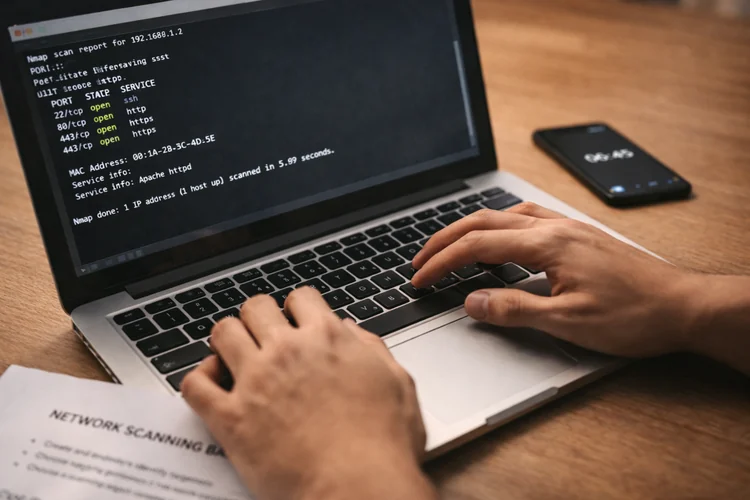
How Nmap Commands Are Structured
Most Nmap commands follow a simple pattern:
nmap [scan type] [ports] [options] <target>
Once you recognize that pattern, the flags stop feeling random. You’re just choosing what to scan (target), how (scan type), and how deep (options).
Targets You’ll Use All the Time
Understanding target notation makes you faster immediately. These are the formats you’ll see in labs and real work.
A single IP:
nmap 192.168.1.10
A hostname:
nmap example.com
A subnet (CIDR range):
nmap 192.168.1.0/24
A list of targets from a file:
nmap -iL targets.txt
This is useful when you’re documenting an assessment or repeating scans over time. It also keeps your workflow clean and consistent.
Nmap Cheat Sheet: Scans You’ll Actually Use
Below are the practical commands you’ll reuse constantly. Each one includes what it’s for, when to run it, and a copy-paste example.
1) Host Discovery: Find What’s Alive
Before scanning ports, you often want to know what hosts are up. This saves time and reduces noise, especially in larger subnets.
Ping scan (discover hosts, don’t scan ports)
nmap -sn 192.168.1.0/24
Use this on your home network to find laptops, phones, routers, and IoT devices. It’s also a clean first step when building an asset inventory in a lab.
ARP discovery (best for local networks)
nmap -sn -PR 192.168.1.0/24
On the same LAN, ARP is often faster and more reliable than ICMP. If you’re scanning your home lab, this is frequently the best option.
If ping is blocked (common on real networks)
nmap -sn -PS80,443 192.168.1.0/24
Some hosts drop ICMP ping, but still respond to TCP probes. This method checks the “alive” status by attempting a SYN probe on common ports.
2) Quick TCP Port Scan: Your First Look
A quick scan helps you answer: “Is anything open here?” This is usually the first scan you run on a single host.
nmap 192.168.1.10
By default, Nmap scans the top 1,000 common TCP ports. That’s a practical balance between speed and usefulness.
3) Scan Specific Ports (Most Real-World Workflow)
In real work, you often already suspect a service.
You scan specific ports to confirm exposure and identify what’s running.
nmap -p 22,80,443 192.168.1.10
This is perfect for checking SSH and web services quickly. It’s also the cleanest scan to include in a report or portfolio screenshot.
4) Scan a Port Range (More Coverage Without “All Ports”)
When you want more depth but still want a reasonable scan time, use a range.
nmap -p 1-1000 192.168.1.10
This catches many important services beyond the default “top ports.” It’s a common next step after your first quick scan.
5) Scan All TCP Ports (Use With Intention)
Scanning all ports can reveal services hiding on uncommon ports. It’s powerful, but it can be slower and noisier.
nmap -p- 192.168.1.10
Use this in labs, CTFs, and authorized tests when you need full coverage. In sensitive environments, you’ll usually coordinate this carefully.
6) Choose the TCP Scan Type You Need
Different scan types behave differently. In practice, you’ll mainly use SYN scans and connect scans.
SYN scan (fast and common; needs privileges)
sudo nmap -sS 192.168.1.10
SYN scans are efficient and often preferred for assessments. They typically require admin/root privileges, especially on Linux.
TCP connect scan (works without sudo more often)
nmap -sT 192.168.1.10
This completes the full TCP handshake using the OS network stack. It’s a useful fallback when you can’t run privileged scans.
7) Service and Version Detection (The “So What?” Step)
Open ports are just the start. The real value is learning what service and version is behind the port.
nmap -sV 192.168.1.10
This can reveal details like OpenSSH versions or web server types. Those details help you prioritize patching and risk assessment.
Combine with specific ports (clean and efficient)
nmap -p 22,80,443 -sV 192.168.1.10
This is one of the best “daily driver” commands for beginners. It’s focused, readable, and easy to interpret.
Control how aggressive version probing is
nmap -sV --version-intensity 5 192.168.1.10
Higher intensity sends more probes and may identify services more accurately. In fragile environments, you may choose a lower intensity to reduce traffic.
8) Default Scripts (Safe Automation That Adds Context)
Nmap’s scripting engine (NSE) can do lightweight checks for you. The default scripts are generally safe and highly informative.
nmap -sC 192.168.1.10
This often pulls banners, headers, and basic service info. It’s a strong “second scan” after you find open ports.
Combine default scripts + version detection (very common)
nmap -sC -sV 192.168.1.10
This combo gives you depth without going overboard. It’s ideal for lab write-ups and beginner pentest workflows.
9) OS Detection and Traceroute (Use Carefully)
OS detection is a best-effort fingerprint.
It can be useful for context, but it’s not guaranteed.
OS detection
sudo nmap -O 192.168.1.10
Nmap infers the OS based on network behavior and responses. Firewalls and NAT can reduce accuracy, so treat results as “likely,” not “certain.”
Traceroute (helpful for network mapping)
sudo nmap --traceroute 192.168.1.10
Traceroute helps you understand how traffic reaches a host. That can be useful in segmented networks or cloud environments.
10) The “Aggressive” One-Command Scan
Nmap’s -A option bundles multiple features into one scan. It can be very informative, but it can also be noisy.
sudo nmap -A 192.168.1.10
This typically includes OS detection, version detection, scripts, and traceroute. Use it in labs and authorized testing when you want fast, broad context.
If you’re scanning anything sensitive, avoid defaulting to -A. A more controlled approach (ports + -sV + -sC) is often safer.
11) UDP Scans (Slow, But Important)
UDP scanning is different because many UDP services don’t respond clearly. That’s why UDP scans can take longer and return “open|filtered.”
Start with a small UDP port list
sudo nmap -sU -p 53,123,161 192.168.1.10
These ports often matter in real environments. DNS (53), NTP (123), and SNMP (161) can reveal valuable network details.
Combine TCP + UDP (targeted and practical)
sudo nmap -sS -sU -p T:22,80,443, U:53,123,161 192.168.1.10
This avoids the “scan everything” trap and keeps your scan purposeful. It’s a good approach for lab exercises and controlled assessments.
12) Web-Focused Scans: Find Websites Fast
If your goal is to locate web servers across a subnet, keep it simple. Scan common web ports and only show hosts that are actually open.
nmap -p 80,443 --open 192.168.1.0/24
This is a great command for web app triage. It’s also useful when you’re mapping internal tools like dashboards and admin panels.
Add service detection for better context:
nmap -p 80,443 --open -sV 192.168.1.0/24
Now you’ll see which hosts run nginx, Apache, or other services. That helps you prioritize which targets to investigate further.
13) Timing and Speed: Go Faster Without Guessing
Nmap timing templates help balance speed and reliability. In home labs, you can often use faster timing safely.
A common faster option:
nmap -T4 192.168.1.10
If scans seem inconsistent, reduce speed or increase patience. In real environments, stability and accuracy matter more than speed.
Disable DNS resolution to speed up subnet scans:
nmap -n 192.168.1.0/24
This prevents Nmap from trying to resolve hostnames. It’s one of the easiest “free wins” for faster discovery.
14) Save Output Like a Professional (Portfolio-Friendly)
Saving results is a habit that separates learners from practitioners. It also makes it easier to write reports and track changes over time.
Save normal output:
nmap -oN scan.txt 192.168.1.10
Save in multiple formats at once:
nmap -oA scans/host-192.168.1.10 192.168.1.10
This generates .nmap, .gnmap, and .xml outputs. The XML is especially useful for importing into other tools.
How to Read Nmap Results (So You Don’t Misinterpret Them)
Nmap port states tell you what it observed during the scan. Knowing the difference prevents beginner mistakes.
- open: A service is accepting connections on that port.
- closed: The host responded, but nothing is listening there.
- filtered: A firewall or filter blocked your probe, so Nmap can’t confirm status.
- open|filtered: Nmap can’t distinguish (common with UDP).
A classic mistake is thinking “filtered” means “secure.” It really means: “we didn’t get enough visibility to know.”
Practical Workflows You Can Reuse (Step-by-Step)
Knowing single commands is useful. Knowing a repeatable workflow is what makes you job-ready.
Workflow 1: Quick host triage (single target)

Start by confirming the host responds:
nmap -sn 192.168.1.10
Do a basic scan to see what’s open:
nmap 192.168.1.10
Then identify services and add safe scripts:
nmap -sV -sC 192.168.1.10
This workflow is clean, practical, and easy to explain in interviews. It also produces results you can document as part of a network scanning tutorial.
Workflow 2: Web server discovery on a subnet
Find which hosts have web ports open:
nmap -p 80,443 --open -n 192.168.1.0/24
Add version detection to see what’s running:
nmap -p 80,443 --open -sV -n 192.168.1.0/24
This is a common workflow for internal network mapping. It’s also a strong lab exercise for beginners, building confidence.
Workflow 3: Targeted Windows/SMB checks (with permission)
If you’re in a Windows-heavy environment, SMB is often relevant. Only do this where you’re authorized to test.
nmap -p 445 -sV --script smb-os-discovery 192.168.1.10
This can reveal OS hints and SMB details when accessible. It’s useful for understanding how Windows hosts expose services internally.
Common Nmap Mistakes (And How to Avoid Them)
One common mistake is scanning too broadly too soon. If you scan an entire /24 with heavy options, you’ll get noisy output and confusion. Start narrow and expand logically. Do host discovery, then check open ports, then identify service versions, then run targeted scripts.
Another mistake is not saving results. If you can’t show what you found, you can’t learn from it or present it in a portfolio. Finally, many beginners treat Nmap results like “truth.” Treat them as observations that you validate with follow-up investigation.
Turning Nmap Practice Into Job-Ready Skill
To stand out, don’t just run scans; explain decisions. Why did you choose those ports, that scan type, and that depth? A simple portfolio project idea is a “home lab exposure report.” Scan your own lab subnet, document open services, and recommend hardening steps.
For example, you might document:
- Which hosts are live and what they likely are (router, NAS, VM).
- Which ports are open and whether they should be exposed.
- Which services are outdated or misconfigured?
- What you would change (disable unused services, restrict access, update versions).
If you want a more guided path, a Code Labs Academy Cybersecurity Bootcamp can help you connect tools like Nmap to real skills employers hire for. You’ll typically build hands-on projects, create a portfolio, and get career support through the Career Services Center.
Soft next step: explore all Code Labs Academy bootcamps, book a call with an advisor, or review the course page to download the syllabus. That structure can be especially helpful if you’re balancing learning with work or family commitments.
Conclusion: Save This Cheat Sheet and Scan With Confidence
Nmap is a foundational tool because it teaches you how networks behave. If you master practical scans (discovery, port scanning, service detection, safe scripts, and reporting), you’ll cover what shows up in real roles.
Practice ethically in a home lab, save your outputs, and build small projects that prove your thinking. That combination of tools and reasoning is what turns knowledge into an employable skill.
Ready to move from self-study to a structured roadmap with portfolio projects and career support? Explore Code Labs Academy programs like Cybersecurity, Web Development, Data Science & AI, and UX/UI Design.
When you’re ready, apply here or book a call to talk through your goals and study options. If you have a quick question first, you can also use the Contact Us page.