
Git for Beginners: The Essential Version Control Skills Every Developer Needs
Updated on November 16, 20267 minutes read
Why Developers Use Version Control
Imagine you spend an afternoon changing your code, and everything breaks. You want the version from this morning, but you didn't save a copy. Maybe you have files named project_final, project_final_v2, and project_final_REALLY_final, and none of them is the one you need.
This is the problem version control solves. Version control is a system that records changes to your files over time, so you can review what changed, undo mistakes, and return to any earlier state. It also lets several people work on the same project without overwriting each other's work.
What Is Git?
Git is the most widely used version control system in software development. It runs on your own computer, tracks changes inside a project folder, and stores a complete history of that project. You don't need an internet connection to use it for everyday work.
Think of Git as a detailed logbook for your project. Each time you reach a meaningful point, such as finishing a feature or fixing a bug, you record a snapshot. Later, you can look back through those snapshots, compare them, or restore one.
Git vs. GitHub
Beginners often mix up Git and GitHub, but they are not the same thing. Git is the tool that tracks your changes locally. GitHub is a website that hosts Git repositories online, so you can back up your work, share it, and collaborate with others.
| Git | GitHub | |
|---|---|---|
| What it is | Version control software | An online hosting service for Git repositories |
| Where it runs | On your computer | In the cloud |
| Main purpose | Track and manage changes | Store, share, and collaborate |
| Needs internet | No, for most everyday tasks | Yes |
Other services, such as GitLab and Bitbucket, offer similar hosting. Git works the same way with all of them.
How Git Works: Working Directory, Staging Area, Repository
Git organizes your work into three areas, and understanding them makes the commands far less mysterious.
Working directory. Also called the working tree, this is your project folder as you see it, where you edit files. Changes here are not yet tracked as part of any snapshot.
Staging area. This is a preparation zone. You choose which changes should go into the next snapshot by adding them here.
Repository. This is where Git permanently stores your snapshots, called commits. Once a change is committed, it is saved in the project's history.
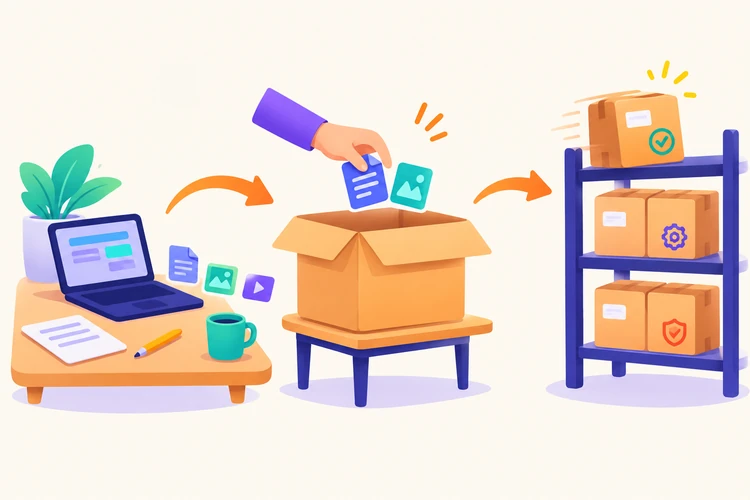
The flow is simple: you edit files in the working directory, stage the changes you want to keep, and commit them to the repository. The staging area exists so you can group related changes into one clean, meaningful commit instead of saving everything at once.
Repositories and Commits
A repository, often shortened to "repo," is a project folder that Git is tracking. Inside it, Git keeps a hidden .git folder containing the full history. You can create a repository from scratch or copy an existing one from somewhere else.
A commit is a saved snapshot of your staged changes, along with a short message describing what you did. Good commit messages are brief and specific, such as "Add login form validation" rather than "stuff." Over time, your commits form a history you can browse and return to.
Essential Git Commands
Here are the core commands you'll use constantly, grouped by purpose.
| Command | What it does |
|---|---|
git init | Creates a new Git repository in the current folder |
git clone <url> | Copies an existing repository to your computer |
git status | Shows which files are changed, staged, or untracked |
git add <file> | Moves changes into the staging area |
git commit -m "message" | Saves the staged changes as a commit |
git log | Lists the commit history |
git diff | Shows the exact changes you haven't staged yet |
git pull | Downloads and merges new changes from a remote repository |
git push | Uploads your commits to a remote repository |
git branch | Lists, creates, or manages branches |
git switch <branch> | Moves you to another branch |
A remote is simply a copy of your repository hosted elsewhere, such as on GitHub. The commands pull and push are how you exchange changes with it.
A note on versions: git switch was introduced in Git 2.23 as a clearer alternative to using git checkout for changing branches, and git restore, used later in this article, arrived in the same release. If you're on a very old version of Git, check your version with git --version.
A Beginner Git Workflow
Let's walk through a complete example, from a new folder to a saved commit.
1. Start a repository. Create a project folder, move into it, and initialize Git:
mkdir my-project
cd my-project
git init
2. Create or edit a file. Add a file, such as index.html, and write some code in it.
3. Check the status. This shows what Git sees:
git status
The new file appears as "untracked," meaning Git notices it but isn't tracking it yet.
4. Stage the file. Tell Git you want this change in the next snapshot:
git add index.html
5. Commit. Save the snapshot with a clear message:
git commit -m "Add homepage structure"
6. Review your history. See what you've recorded so far:
git log
Later, when you edit the file again, git diff shows exactly which lines changed before you stage them. This habit of checking git status and git diff before every commit helps you avoid saving things you didn't mean to.
To work with a remote, you would use git clone to copy a repository down, git pull to fetch teammates' updates, and git push to share your own commits.
Getting the Old Version Back
Now return to the problem from the start. Suppose you edited index.html and broke it, but you committed a working version earlier. Because that version is safely stored, you can discard your uncommitted edits to the file:
git restore index.html
Be careful here, because this permanently throws away changes you haven't committed. That is exactly why committing often matters: every commit is a safe point you can return to. To see which earlier versions exist, run git log and review the messages.
Branches: An Introductory Explanation
A branch is an independent line of development inside your repository. Think of it as a parallel copy of your project where you can try something new without affecting the stable version.
For example, suppose your project works well and you want to experiment with a new feature. You create a branch, make changes there, and if the experiment fails, you simply abandon it. If it succeeds, you can combine it back into the main line of work.
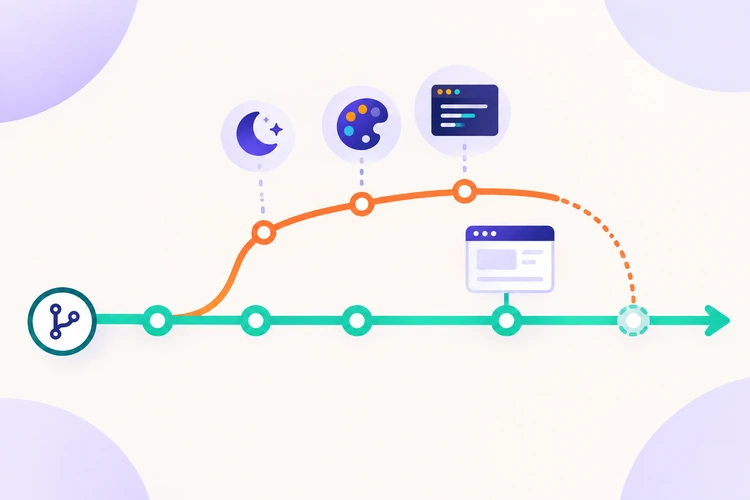
git branch new-feature
git switch new-feature
The first command creates the branch, and the second moves you onto it. From that point, any commits you make belong to new-feature until you switch back. The name of your default branch may be main or master depending on your Git version and settings, so check with git branch rather than assuming.
Common Beginner Mistakes
Almost everyone makes these mistakes at first, so don't be discouraged by them.
Vague commit messages. Messages like "update" or "fix" make history hard to use. Describe what changed and why, in a short sentence.
Committing too much at once. Huge commits mix unrelated changes, which makes problems harder to trace. Commit small, logical pieces of work.
Forgetting to check status. Running git status often keeps you aware of what's staged, what isn't, and which branch you're on.
Committing sensitive files. Passwords, API keys, and private configuration files should never be committed. A .gitignore file tells Git which files to leave out.
Pushing without pulling. If a teammate has pushed changes first, your push may be rejected. Pull the latest changes before you push.
Panicking when something goes wrong. Because Git keeps history, most mistakes are recoverable. Pause, check git status and git log, and look up the fix before trying random commands.
What to Learn Next
Once the basic workflow feels natural, the next skills are where Git becomes truly powerful. These include working comfortably with branches, merging branches together, collaborating through a remote repository, and resolving conflicts. A merge conflict happens when two people change the same part of a file, and Git needs you to decide which version to keep.
These topics are easiest to learn through practice, since conflicts and collaboration are hard to understand from reading alone. If you want hands-on practice with branching, merging, collaboration, and conflict resolution, one structured way to build these skills is through Code Labs Academy's self-paced Git Fundamentals for Beginners course, which offers a guided learning environment for these fundamentals.
Whichever route you choose, the best habit is to use Git on every project you work on, even small personal ones. Repetition is what turns these commands into second nature.

Learn technical skills online with Code Labs Academy
Join our supportive community, unlock your potential, and embark on a rewarding career path.
Apply Now